Thursday, November 20, 2008

If you cannot log in Hotmail with Sleipnir...

We have received reports of cases of not being able to log in MSN Hotmail with Sleipnir.

[Cases that may occur]
*After logging in, blank page is displayed
*You cannot see the first Hotmail mail page, received mail list
*Sleipnir freezes after logging in

[How to improve the case]
You can improve the case following steps below:

1.Start Sleipnir
2.Go to “menu bar-> Tools-> Sleipnir Options-> View-> Trident”
3.Choose “Internet Explorer” from the User Agent menu
4.Press OK and close the option dialog
5.The dialog will be shown up so choose “Restart now”
6.After restarting, please check if the case is improved


At this moment, we only know that many users who have this problem are using PC with Windows XP and having installed Internet Explorer 6 and you can improve the case with steps above.

We have reported this case to Microsoft and at the same time, we have been trying to find its cause now.
If you notice something new regarding this matter, please leave your comment here. It will help us to solve the case.

We also have received reports that scroll bar is not displayed after logging in so that you cannot see the whole page. We don't know its causes yet but if you try the steps above and the case is improved, could you please let us know?

Thank you very much for your kindness.

Friday, November 14, 2008

We've released Sleipnir Version 3 alpha!!


by Nami

Hi, everyone!

I'm Nami in overseas depertment in Fenrir Inc!
Today we have big news to tell you ;-)
We have released Sleipnir 3, alpha version!! And this time, we've released not only Sleipnir in Englsih but also in Spanish, German, and Turkish!!

This is just beginning of our multi-language translated Sleipnir project! So we plan to release Sleipnir in other languages too, hopefully pretty soon!

This is still alpha version and have some points that we have to enhance and we are planing to do so with the next updated version.
If you would like to use the same functions from the current Sleipnir, please continue to use Sleipnir 2.8.3 which was released on this Monday: http://www.fenrir-inc.com/us/

Thank you very much!

Download Sleipnir 3 alpha
in English: http://public.fenrir.co.jp/en/community/viewtopic.php?t=5398
in Spanish: http://public.fenrir.co.jp/en/community/viewtopic.php?t=5399
in German: http://public.fenrir.co.jp/en/community/viewtopic.php?t=5400
in Turkish: http://public.fenrir.co.jp/en/community/viewtopic.php?t=5401

The second arc of our history

by Miki


Have you read our history and secret?
http://www.fenrir-inc.com/us/history/

We will mark the 3rd anniversary of the founding of Fenrir Inc on November 16th. Our history is on "History page" above but here I'd like to talk more details about how and why our company philosophy was created.

As history shows that his PCs for software development were stolen three years ago and he lost all the source codes of Sleipnir. So he had no choice but to give up Sleipnir. After the accident, he was so shocked that he could not get out of his bed for a week.

He had already huge number of users in Japan at that time. And when he reported this accident, it became big news and he received lots of encouraging messages from users. Also some users even started contacting with each other and they tried to support him.

He re-realized that he was supported by many users and decided to re-create Sleipnir from the beginning. This accident deepened more communication with users.

"Provide happiness for users through software," "creating software for users" now became company philosophy of Fenrir Inc.

We have started advancing into the global market since this year. We would like to communicate actively with users as same as Japan around the world and create and offer continuously more enhanced browser for users.

We have received lots of supports and warm messages since we created Sleipnir. We keep making our best efforts to offer high custamizable, highly quality, and elegant designed browser for YOU!!

Thank you very much for using Sleipnir and your kind support!

Tuesday, November 11, 2008

Sleipnir 2.8.3 released!!

by Falcon, software developer


Hi, I'm Falcon being in charge of software development in Fenrir Inc.

We released Sleipnir 2.8.3!
You can download from here
Sleipnir 2.8.3

We fixed a few bugs and enhanced some points form Sleipnir 2.8.2.
Please refer our release note for more details about Sleipnir 2.8.3.
Sleipnir 2.8.3 release note

Thank you very much.

Wednesday, November 5, 2008

Let's use and enjoy IEPanelEx / IEDockEx (3) – IEPanelEx part 2

by Mr.X


It's getting cooler and cooler. It's a good season to eat hot hot ramen! Ummmm...

Hi, guys! I'm Mr. X! Give me ramen!

☆Outline of the previous blogs

・Tried IEPanel
・Set IEPanelEx

Today's topic is “how to create something more with simple HTML and JavaScript.”
I continue form the previous blog. Before starting this, please read the previous blog and create “TestPanel.”

*IEPanelEx / IEDockEx are softwares under development in our Laboratory!


☆Before you start...

1.Open “<Sleipnir installfolder>/plugins/IEPanelEx/TestPanel/config.ini” in text editor
2.Delete the line, “URL=http://www.fenrir-inc.com/”
--------------------------------------------------------------
[Settings]
Action=true
ContextMenu=true
ScrollBar=true
DropTargey=true
---------------------------------------------------------------
3.Copy index.html to somewhere for your back up (you can find it in the same folder where config.ini is in)
4.Restart Sleipnir

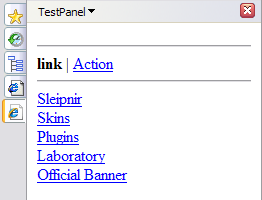
TestPanel will be displayed like this


☆Let's create original panel!
Are you ready? OK, then, let's edit index.html. After opening it in the text editor and delete all the lines, write as follows and save it.
---------------------------------------------------------------
<html>
  <head>
    <title>TestPanel</title>
  </head>
  <body>
    Test
  </body>
</html>
--------------------------------------------------------------

Right click on the panel and select “Refresh”


Changed!


You can display your favorite contents just editing index.html. You can use JavaScript too.
---------------------------------------------------------------
<html>
  <head>
    <title>TestPanel</title>
  </head>
  <body>
    <inputtype="button"value="Click"onclick="alert('Click');">
  </body>
</html>
---------------------------------------------------------------


Let's create a count down timer!
---------------------------------------------------------------
<html>
  <head>
    <title>TestPanel</title>
    <script>
      var TIMER = 5;
      var COUNT = TIMER;
      var TH;
      function startTimer() {
        if (COUNT <= 0)
          COUNT = TIMER;
        TH = setInterval(function() {
          COUNT -= 1;
          if (COUNT <= 0) {
            clearInterval(TH);
            alert('Finish');
          }
        }, 1000);
      }
    </script>
  </head>
  <body>
    <input type="button" value="Click" onclick="startTimer();">
  </body>
</html>
---------------------------------------------------------------

It keeps counting down though you close the panel. I always set “var TIMER = 180” to time for instant noodle. So I can enjoy surfing the Internet without forgetting the best time for noodle!! Ready to eat Ramen!!


☆Next blog...

When you use this as a timer, you can add more, such as STOP button or a function to show time of counting down etc... what...? I cannot hear you...

“Taking too much space :-(”

......Yeah. I know... Whole panel is displayed for just one button. Yes, you are right! Taking too much space...
So the next time, I'll introduce IEDockEx that doesn't take that much space.

Thank you!

Note:
When you use Javascript with IEPanelEx, you may receive a warning message “To help protect your security, your web browser has restricted to access.” because of “Security setting of execution of Active X.” If you try to display a reliable page, you can allow its dieplay selecting “Allow Blocked Content” from the click menu.


Please select “Yes” on the next warnig window saying “Are you sure you want to let this file run active content?”


Related pages:

Fenrir Lab/ IEPanelEx
Fenrir Lab/ IEDockEx
Let's use and enjoy IEPanelEx / IEDockEX (1) – IEPanel
Let's use and enjoy IEPanelEx / IEDockEX (2) – IEPanelEx part 1


Friday, October 31, 2008

Let's use and enjoy IEPanelEx / IEDockEX (2) – IEPanelEx part 1

by Mr.X

Hello, guys! I'm Mr. X.


The last time, I introduced IEPanel and talked too long (maybe) and went to bed too late so my skin becomes rough now!! Oh, no!! So this time, I'd like to talk about IEPanelEx simply so that my skin returns to beautiful and smooth... Anyways,

☆Outline of the previous blog

・Let's use and enjoy IEPanelEx / IEDockEx
・But firstly, introduced IEPanel
・Next, talk about IEPanelEx

So this time, I'll explain how we can do the same with IEPanel using IEPaneEx.

*IEPanelEx / IEDockEx are softwares under development in our Laboratory!

☆How to use IEPanelEx

Before using IEPanelEx, we need to copy a file manually, so let me explain it. We will create a panel named “TestPanel.”

1.Download IEPanelEx from Fenrir Lab.
2.Select “Extract all” from the right click menu


3.If you are using Sleipnir on Windows 2000/XP/Vista, use “unicode” folder. If you are using Windows 98/98SE/Me, use a file in “mbcs” folder.


4.Change a folder name from “<expandedfolder>/plugins/IEPanelEx/IEPanelEx” to “<expandedfolder>/plugins/IEPanelEx/TestPanel”

5.Change a file name from “<expandedfolder>/plugins/panel/IEPanelEx.fx” to “<expandedfolder>/plugins/panel/TestPanel.fx”

6.Copy expanded folders, “unicode” (or mbcs) and all the files below “unicode,” to below “<Sleipnir installfolder>”

7.Find “Panel” in “<Sleipnir installfolder>/pref/plugins.ini”, and add “Panel5=TestPanel.fx” referring other lines. (Panel5 on the example below is added part. If the “Panel5” is already there, please add “Panel6”. # means disable orders so you don't have to add # line.)


8.Restart Sleipnir

Then you find one more icon on the explore bar.


When you select the new icon, you can see a link list as a sample.


You can also execute actions.


You can do a lot with this panel. Let's set it to execute the same action as IEPanel and display some web sites!

1.Open “<Sleipnir installfolder>/plugins/IEPanelEx/TestPanel/config.ini” in text editor.
2.Change “ContextMenu=false” to “ContextMenu=true”
3.Change “ScrollBar=false” to “ScrollBar=true”
4.Add “DropTarget=true” at the bottom
5.Add also “URL=http://www.fenrir-inc.com/” to the bottom


6.Restart Sleipnir

☆Today's key points!

*You can create IEPanelExs(plural) changing file name.
・Repeat the steps above changing file name, “TestPanel”

*You can change actions of IEPanelEx adding lines on config.ini
・“URL=” is for specifying URL. The same index.html in a config.ini file will be
displayed if you do not specify the URL.
・“ScrollBar=” is for whether display the scroll bar.
・“ContextMenu=” is for whether display right click menu or not
・“DropTarget=” is for whether allow drag & drop to the panel

For more details, please refer config.ini.

For the next time, I'll talk about “how to create something more with easy HTML and JavaScript,” “who is Mr. X?” or “Mr. X, mysteriously disappeared.” I'm going to talk about one of them. So don't miss it!!

Thank you!

Related page:

Fenrir Lab/ IEPanelEx
Fenrir Lab/ IEDockEx
Let's use and enjoy IEPanelEx / IEDockEX (1) – IEPanel


Wednesday, October 29, 2008

Let's use and enjoy IEPanelEx / IEDockEX (1) – IEPanel

by Mr. X


Now it's getting a little bit cold and we have started feeling autumn in Japan.
In Japan, we say that autumn is the good season to play sports, work on artistic activities, and eat delicious food because fruits like grapes, apples or chestnuts, saury(fish) and other lots of food are in season. Autumn is also not too hot, not too cold, so it's a good season to enjoy various activities!

But I'm not good at both sports and art so I'd like to enjoy this autumn with IEPanelEx / IEDockEx!
Today I'm going to explain about this 2 plug-ins so that someone like me can enjoy great autumn!!!!

* IEPanelEx / IEDockEx are softwares under development in our Laboratory!


☆What is IEPanelEx / IEDockEx?
“IEPanelEx? IEDockEx? What are they?”

We are introducing them in Fenrir Laboratory. I'll explain them to you in a very simple way.

・IEPanelEx is a panel displayed on the explore bar dock, the same place as Haedline-Reader Plugin”, “Favorites”, or “Browsing history.”
・IEDockEx is displayed on its own dock. You can change and set its size and position freely from its setting file.

“I don't understand panel, dock :-( What are they???”

Oh...., ok, firstly let me explain IEPanel. IEPanelEx is an extended edition of IEPanel. So I'll introduce you starting from IEPanel-> IEPanelEx-> IEDockEx. I think it's easier to understand.

☆Let's try IEPanel!
Let's use IEPanel first! (You need to restart Sleipnir to make the software enable)

1.Select “Tools-> Change design-> Plugin” from the menu bar
2.Check the box of “Show pre-installed plugins”
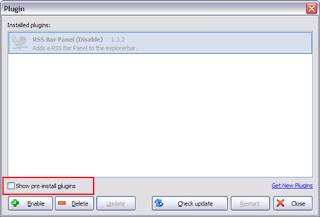

3.Wow!! you can see a list of many many plug-ins. Select “IEPanel (pre-install) (Disable)” and click “Enable” on the left bottom corner
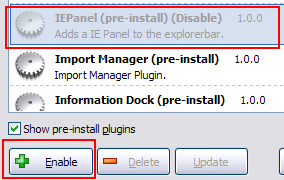

4.Click “Restart” on the right bottom and restart Sleipnir

Then...
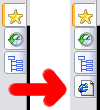

you can see another icon on the explore bar. Let's click it!
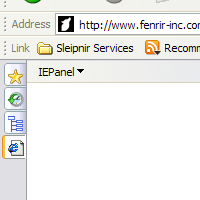

Ahhhhhh... Oh no!!!!! Blank page :-< Just kidding :-P OK, this time, let's drag & drop icon on the left side of the address bar.
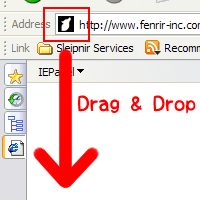
Yes!! It opens!! You can use it in a different way from the regular tab display.
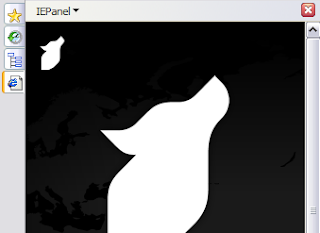

But you have to be careful because once you close Sleipnir, it'll go back to a blank page again :-(
If you don't want to drag &drop every time, you can edit setting file and save it following these steps.

1.Close Sleipnir
2.Open “<Sleipnirinstallfolder>/settings/<username>/setting/IEPanel/IEPane.ini” in text editor
3.Write URL you open with IEPanel on the first line
4.Save it, finish the text editor and start Sleipnir

Then you can display your saved site every time when you open Sleipnir.

So how can you use???

・You can display Google search like this...


・You can display Yahoo like this...
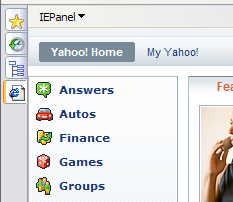

・Or calender like this...
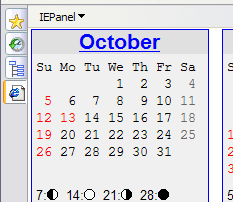

Ummm... You can do a lot!

☆Next blog...

So how do you like IEPanel?

“Only one panel? Can we have more?”
Yes, you can have IEPanels (plural) and also add functions to it with IEPanelEx!! Well, I'll introduce how to use IEPanelEx for the next time... hopefully...

OK. I worked too hard today!! Too much work is not good for your skin, right? so I'm going to bed now! Good night... Sweet dreams... ZZZzzzzz

Thank you and see you soon!!!

Related page:

Fenrir Lab/ IEPAnelEx
Fenrir Lab/ IEDockEx